CueDeck Command Center
Call the whole show from one screen
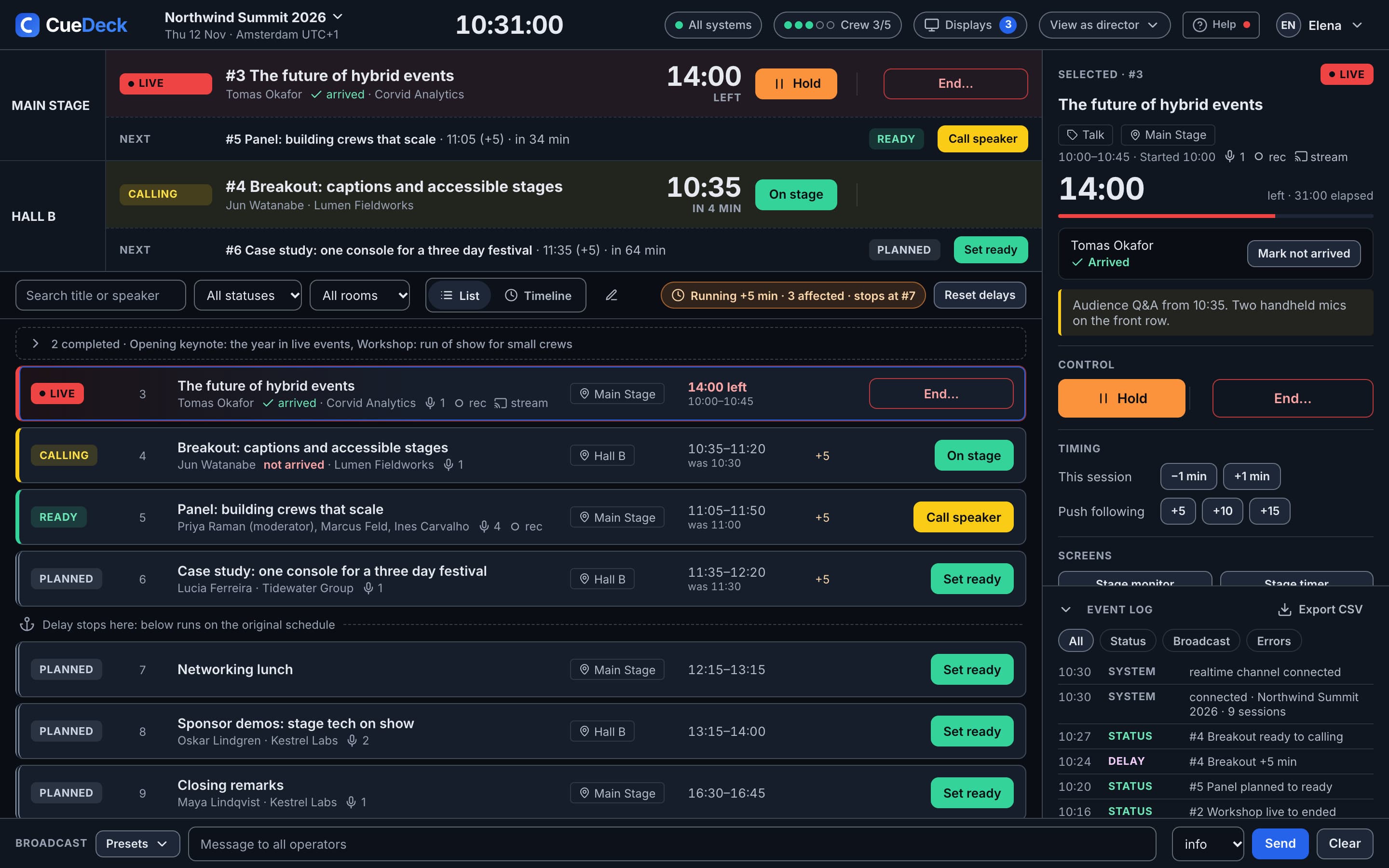
Show calling software for conferences and live events: your run of show, live cues and every operator in one real-time console. When the schedule slips, everyone knows at the same moment.
3-day free trial on every plan · No credit card required
How it works
From spreadsheet to show day
Build the run of show
Add sessions, rooms and team members, or import them from a spreadsheet. Assign each person a role.
Call the show
Ready, Call Speaker, Go Live. Every status change reaches every operator's screen instantly, no refresh needed.
Stay in control
Apply a delay and it cascades through the day. Broadcast to the crew, drive the screens, and get help when something breaks.
Show calling
How a show runs in CueDeck
The run of show stops being a document and becomes the live system the whole crew works from.
Prepare the run of show
Create the event with its name, date and venue, then add each session with a title, speaker, room, start time and duration. For a long programme, import a CSV instead: CueDeck checks the columns, time formats and durations, and shows a preview of what will be created before anything is saved. Session notes hold the technical requirements or speaker preferences every operator can read.
Bring in the crew
Invite operators by email from the Operators panel and give each one a role. New operators wait for the director's approval before they can open the console, so nobody joins the show uninvited. You can change a role at any time.
Call each session
Every session moves through the same states: Planned, Ready, Calling, Live and Ended. Stage marks a session Ready when the speaker is standing by, calls the speaker, and goes live. Transitions are checked on the server, so if two people press Go Live at once, only one change goes through. Keyboard shortcuts cover Ready, Call, Go Live, Hold and End.
Run it live
A live session shows elapsed and remaining time with a progress bar that turns amber at 80% and red at 100%. When a session passes its planned end, it switches to Overrun on its own. Hold pauses a session for a technical problem and Resume sends it back to Live. The director's broadcast bar puts a message on top of every operator's screen, with presets for common calls such as doors opening or a break.
Absorb delays
When a session runs late, the director enters the delay in minutes and chooses whether to cascade it. Later sessions in the same room move by that amount, sessions in other rooms stay put, and anchored sessions never move. Reset to planned puts every session back on its original time. Only the director can apply a delay, and everyone else sees the new schedule straight away.
Close the show
The event log records every state change, broadcast, delay, operator connection and signage override, and exports as a CSV. With the AI Report Generator, one click produces an executive summary, planned against actual timing for every session, the incident log and recommendations for the next event.
Built for live
Everything the crew needs, nothing it does not
Six operator roles
Director, Stage, AV, Interp, Reg and Signage. Each role sees exactly what it needs, with role-adaptive filters and keyboard shortcuts.
Real-time sync
Session changes, broadcasts and clock updates reach every operator through live subscriptions. Zero polling.
Delay cascade
Apply a delay to one session and it moves everything after it. Every operator sees the new schedule at once.
AI Incident Advisor
When something breaks, get an instant diagnosis and numbered resolution steps. Included on Pro.
Post-event reports
An executive summary, session-by-session timing variance and the incident log, ready to share in one click.
Auto-reconnect
If a device drops, it reconnects and catches up on its own.
Operator roles
Six roles, one console
Each crew position gets its own view of the same run of show.
Director
Sees everything. Runs session transitions, broadcasts, signage, delays, AI agents, billing and the operator list.
Stage
Sessions for the assigned rooms with speaker info and timing. Sets ready, calls the speaker, goes live, holds and ends.
AV
Session titles, rooms, technical notes and timing. Marks AV ready and follows every transition.
Interpreter
Session titles, speaker names, languages and timing, to follow each session as it progresses.
Registration
The session schedule, room assignments and room capacity for the front desk.
Signage
The signage panel: configure displays, set modes, manage the sponsor carousel and push overrides.
Event teams
Invite people to one event, with one role
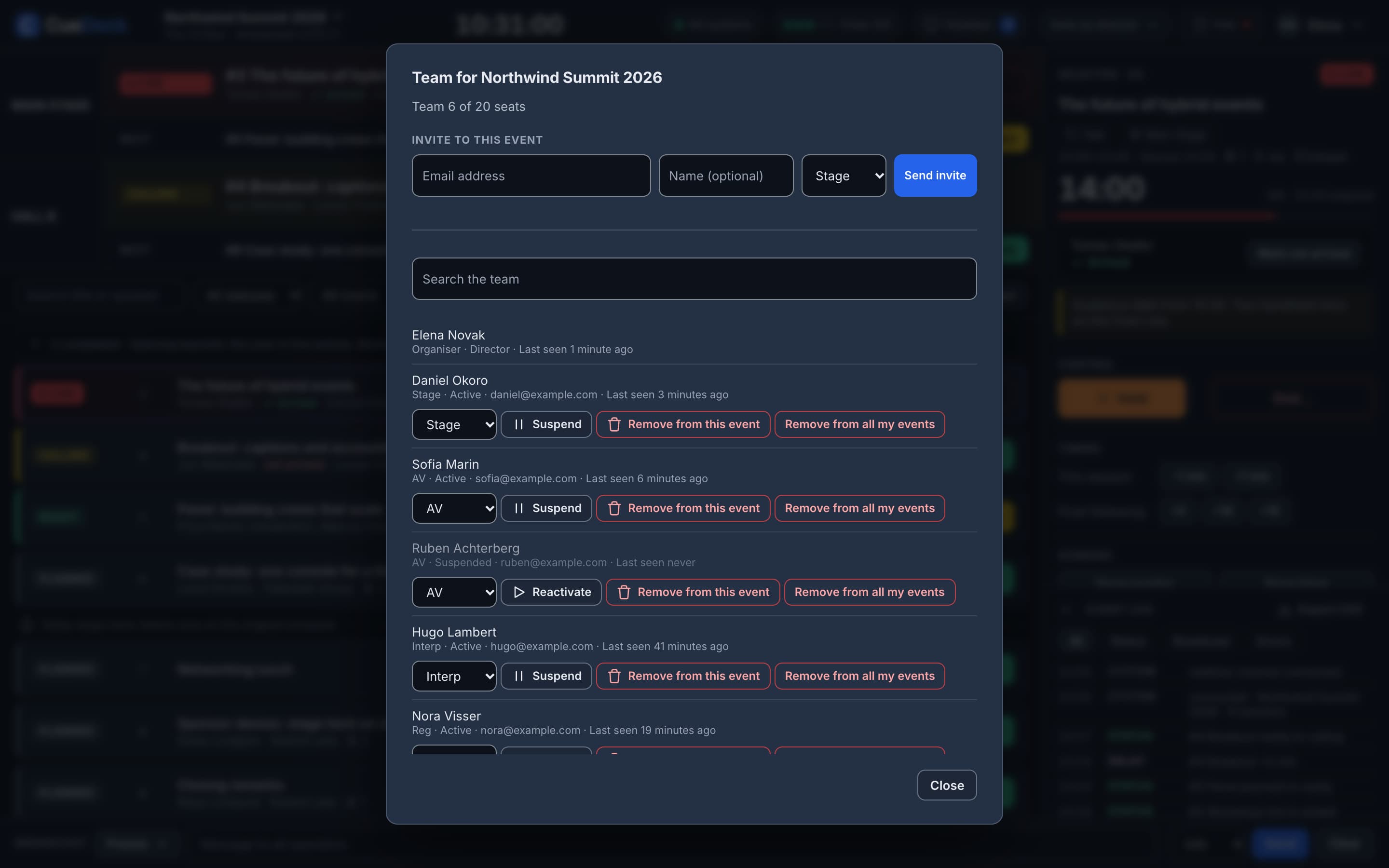
Each event has its own team. Invite someone by email, pick their role and they get access to that event only. People you invite work under your plan, so they do not need one of their own.
- Change a role, suspend someone or remove them from this event or from all your events
- Seats follow your plan: up to 5 on Pay-per-event and Starter, up to 20 on Pro
- See when each person was last seen
Event switcher
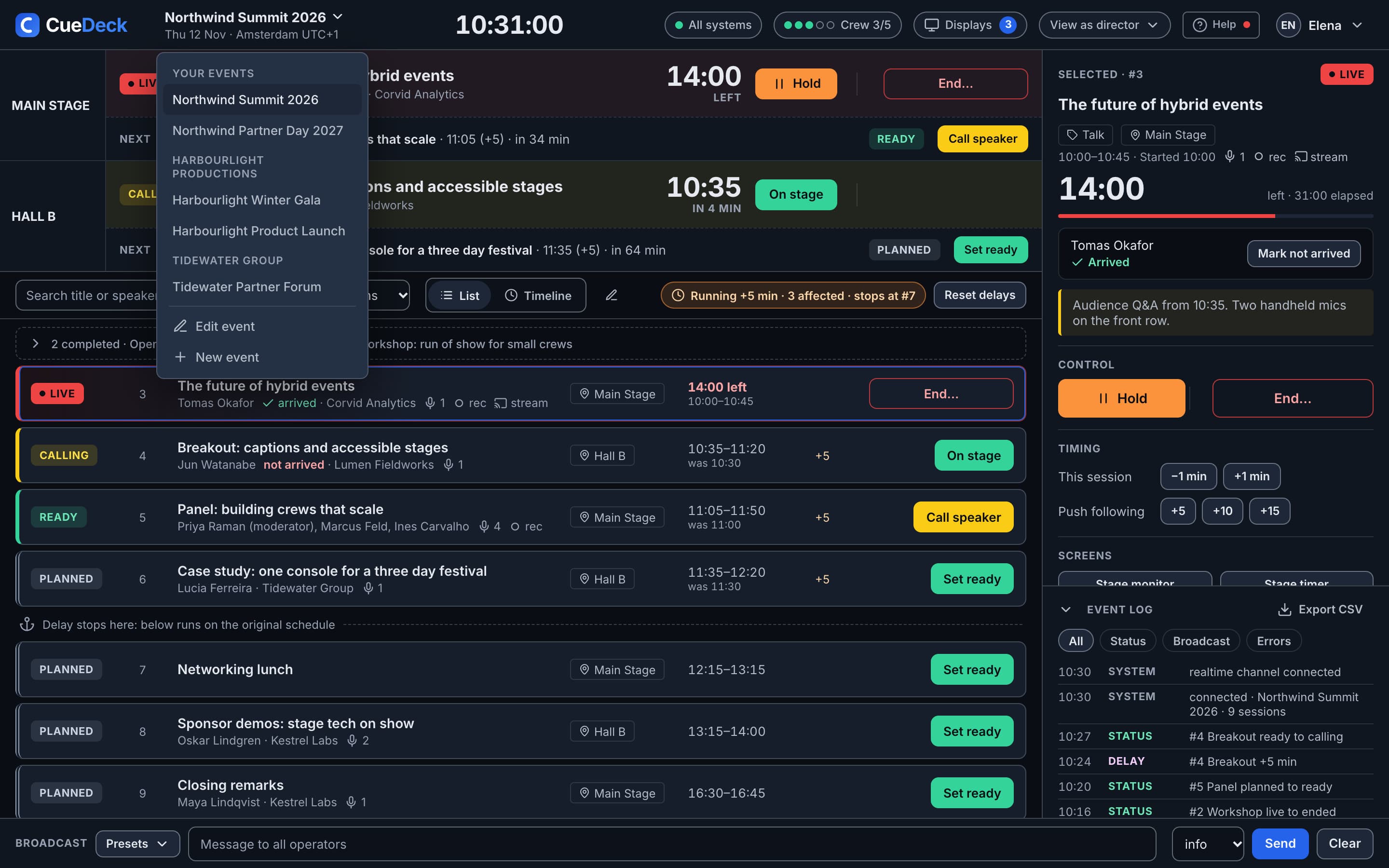
Every event you work on, grouped by organiser
Your own events sit at the top of the switcher. Events other organisers have invited you to are listed under their name, so a freelancer crewing for several companies moves between shows in one click.
On your phone
Run the show from a phone
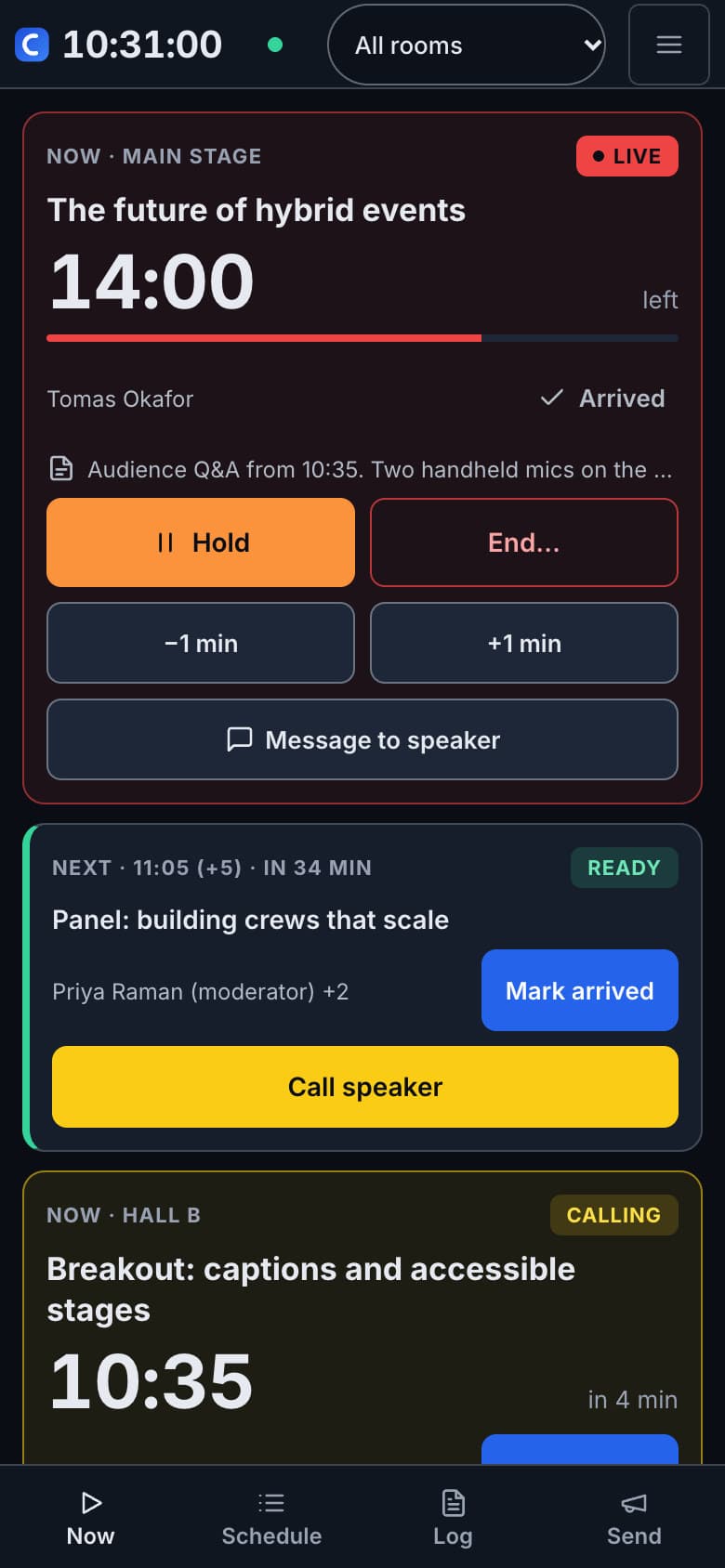
On a phone the console turns into cards, one for each room's current and next session. Hold, end, add or take away a minute, call the next speaker or mark them arrived without going back to the laptop.
- Filter to one room or follow all of them
- Now, Schedule, Log and Send along the bottom
- Message to speaker from the live session's card
Delay cascade
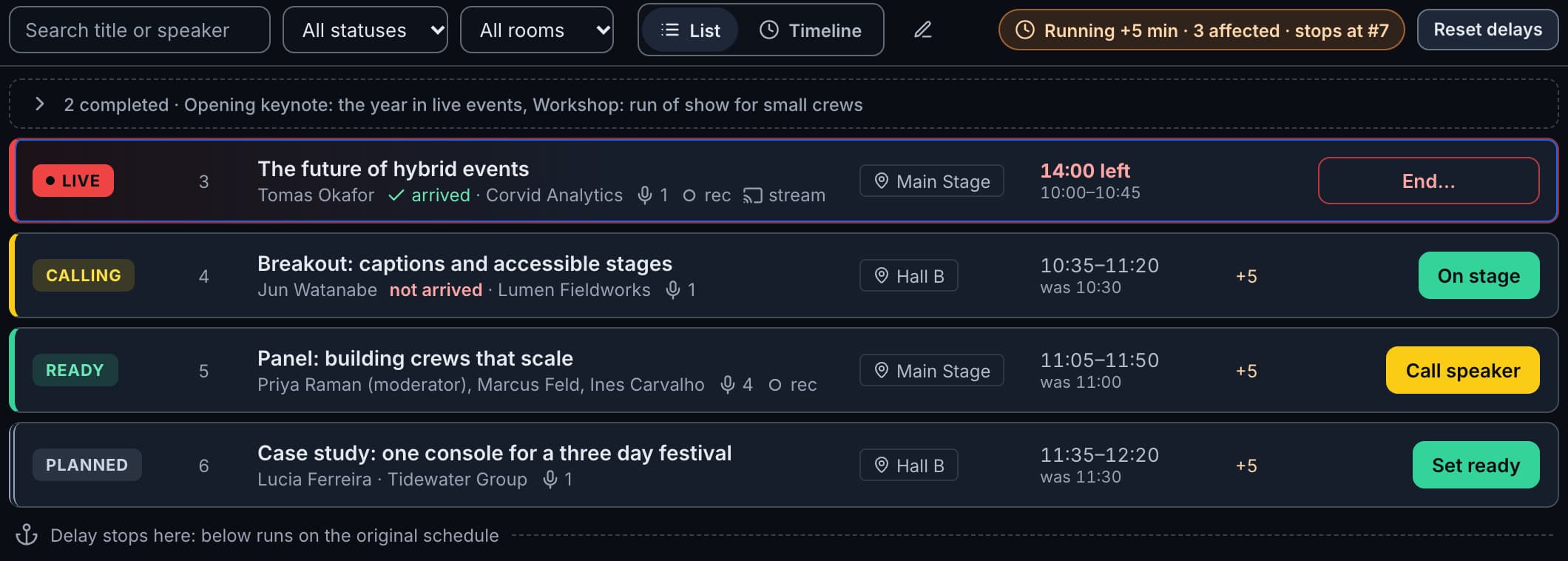
Late in one room, on time everywhere else
Push the following sessions by five, ten or fifteen minutes and the list shows the new times beside the old ones. The delay stops at the next anchored session, and everything below it runs on the original schedule.
Message to speaker
Tell the speaker without walking on stage
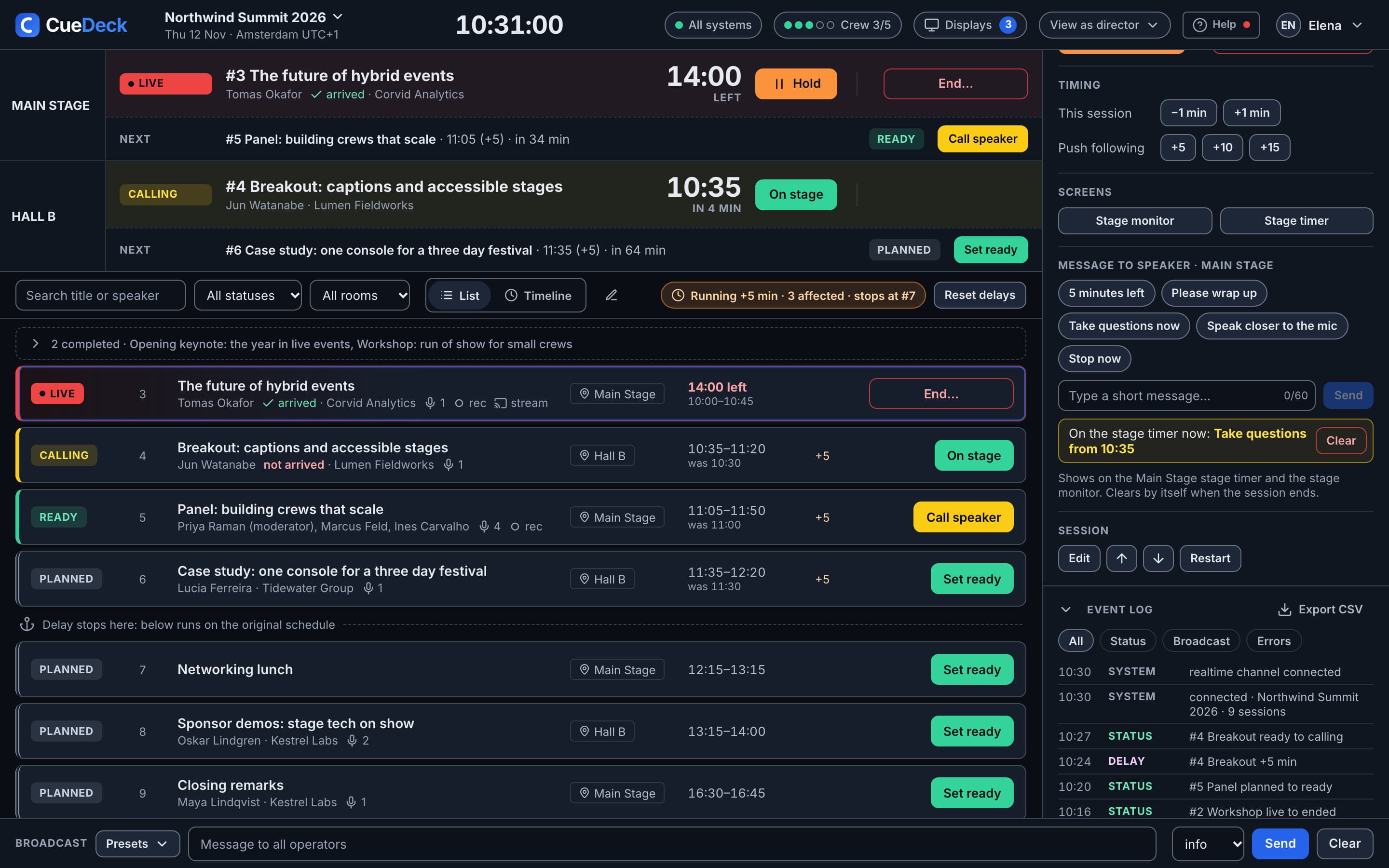
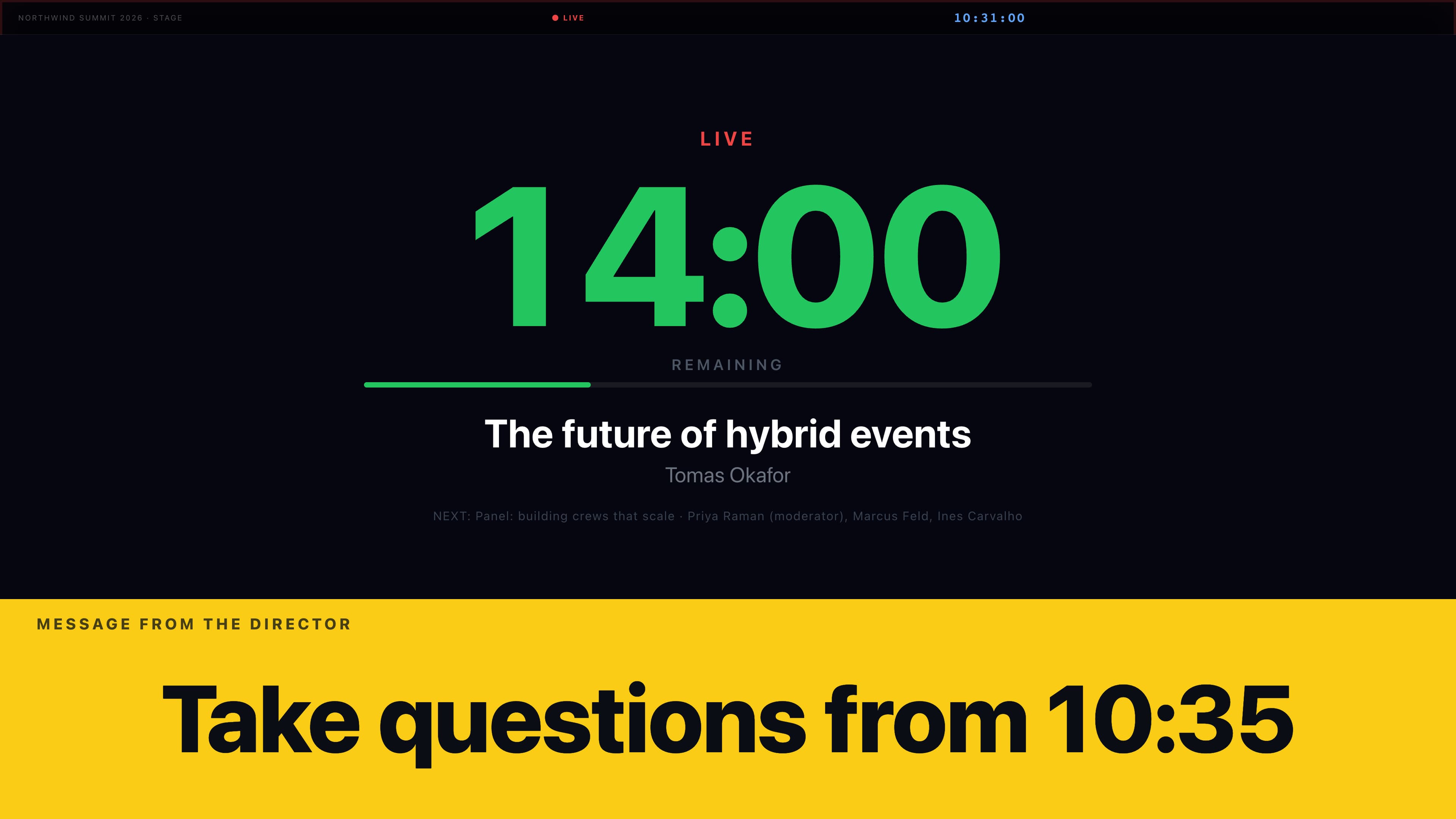
Pick a preset such as 5 minutes left or Please wrap up, or type a short message of up to 60 characters. It shows on that room's stage timer and stage monitor, and clears by itself when the session ends.
On stage
Speakers see the same clock you do
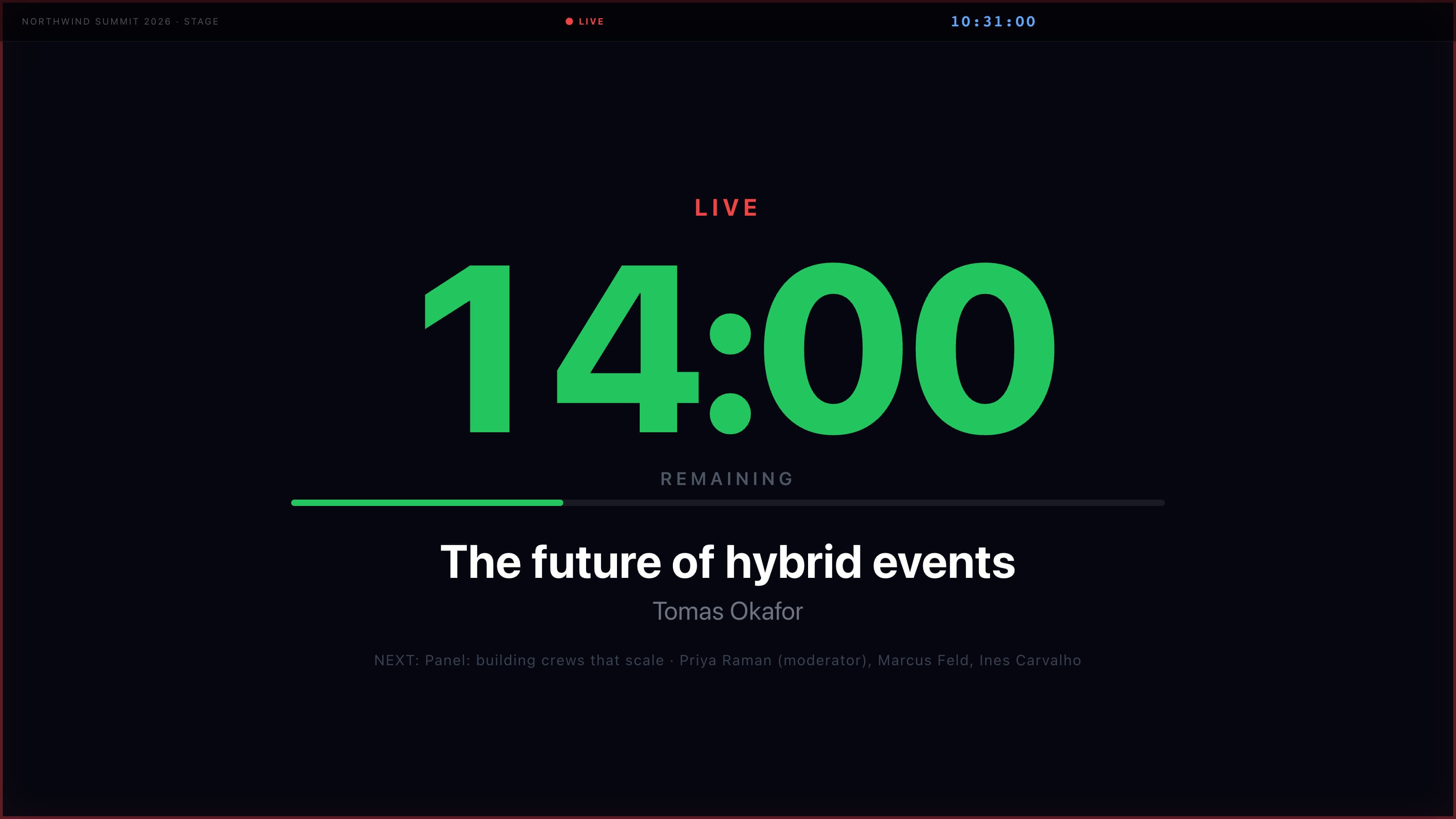
Send the live session to a stage timer with one click. It counts down from the console's clock, so the stage and the director never disagree.
Questions
Show calling questions
Can I import my run of show from a spreadsheet?
Yes. Save it as a CSV with title, room, start time and duration columns, plus optional speaker and notes. CueDeck validates the file and shows a preview before it creates the sessions. Import adds new sessions; edit existing ones in the console.
What are the six operator roles?
Director, Stage, AV, Interpreter, Registration and Signage. Each role has its own view with only the controls and information that crew position needs. Only the director manages billing, invites operators, configures AI agents and applies delays.
What happens when a session overruns?
When a live session passes its planned end, its status changes to Overrun automatically and every operator sees it. The director can then apply a delay: later sessions in the same room shift by that amount, while anchored sessions stay fixed.
Does it work for events with several rooms?
Yes. Every session belongs to a room, operators can filter the session list by room, and a delay in one room does not move sessions in other rooms unless they depend on it. The director sees every room at once.
What if an operator loses their connection?
CueDeck reconnects on its own and re-syncs the clock. The top bar shows the database and realtime connection status, and broadcasts are stored, so an operator who comes back sees the latest message.
Which plans include the AI features?
The AI agents (Incident Advisor, Cue Engine and Report Generator) are included on the free trial, Pro and Enterprise plans. They run on CueDeck's servers, so there is nothing to set up.
Related