Stage Timer & Displays
Every speaker knows exactly where they stand
A stage timer and confidence monitor for every speaker, and signage for every other screen in the venue, all driven by the same live run of show.
Included in every CueDeck plan
On every screen
One schedule, every display
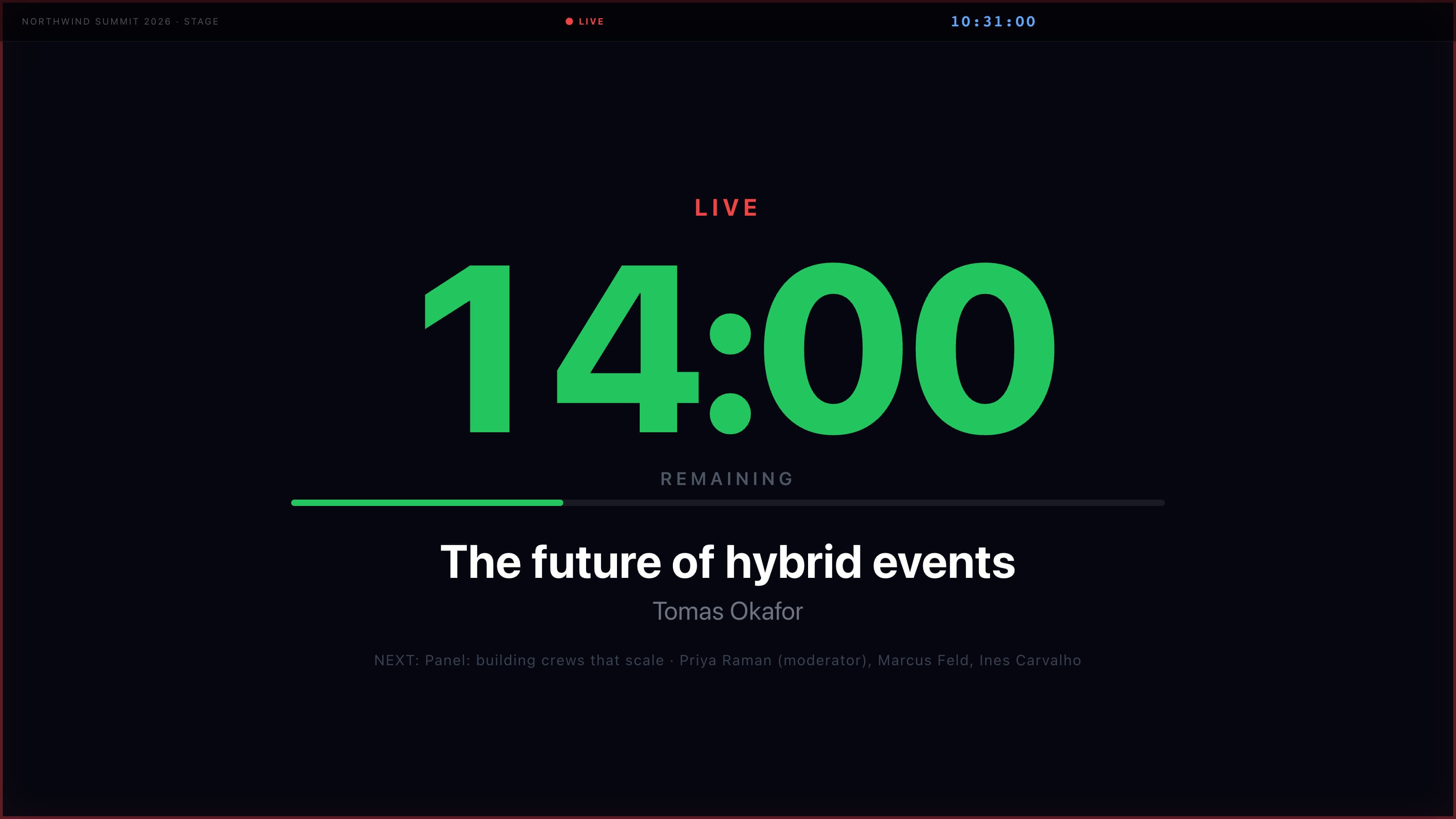
Colour-coded countdown
Green, then amber, then red as time runs down, readable from the back of the stage.
Hold and overrun
HOLD freezes the clock. When a session runs over, the timer flashes so the speaker cannot miss it.
Confidence monitor
A fullscreen view for speakers and stage crew: the session title and speaker, elapsed and remaining time, the LIVE, OVERRUN or HOLD status, the next session and the director's broadcasts.
Next session underneath
The stage timer shows what comes next, so the speaker and the stage manager are ready for the handover.
11 display modes
Stage timer, schedule, agenda, timeline, programme, wayfinding, sponsors, break, Wi-Fi, recall and custom messages.
Pair with a code
Each screen shows a short code. Enter it in the console and the screen is yours. No network setup, no IP addresses.
Driven from the run of show
Screens follow the live schedule. Apply a delay in the console and every screen updates.
In detail
The stage timer, the confidence monitor and the signage
What each screen shows, and how it stays in step with the console.
How the stage timer works
Register a display, set its mode to Stage Timer and open it on a screen facing the stage. It picks up the session that is live in the console and counts down on its own. The numbers turn from green to amber to red as the end approaches. If the speaker runs over, the timer flashes and counts the time over, for example +2:15. When no session is live, it shows a standby screen with the next scheduled session, and a progress bar along the bottom shows how far through the session the speaker is.
Hold, delays and the director's clock
When the director puts a session on hold, the countdown freezes and shows HOLD until the session resumes. When a delay is applied in the console, the timer and every other screen follow the new schedule. The stage timer counts from the same synced clock as the console, so the stage and the director never disagree about how much time is left. A message to the speaker sent from the console shows on that room's stage timer and stage monitor, and clears by itself when the session ends.
The confidence monitor
The Stage Monitor is the confidence monitor for speakers and stage crew. Open it from the Stage Monitor button in the console and it goes fullscreen. Put that browser on a monitor facing the stage and it shows the current session title and speaker in large type, elapsed and remaining time, the session status and a preview of what follows. Broadcast messages from the director appear on it too. It uses a high-contrast dark theme, and Escape closes it.
Connecting a screen
On the TV, tablet or monitor, open app.cuedeck.io/d in any browser. A 6-character pairing code appears. Type it into the Signage panel, click Pair and the screen is connected. Install the display from the browser and it runs as a fullscreen app that survives reboots. Paired displays reconnect on their own if the network drops, and the Signage panel shows which ones are online.
Signage for the rest of the venue
The same screens can show the agenda, a time and room programme grid, sponsor logos, the Wi-Fi details, a break countdown or a custom message. A display can rotate through a sequence of modes, such as sponsors, then the agenda, then the Wi-Fi details. The director can push an override such as a break screen, a 5-minute recall or an emergency message to every display at once, and it stays up until it is cleared.
Lobby screens
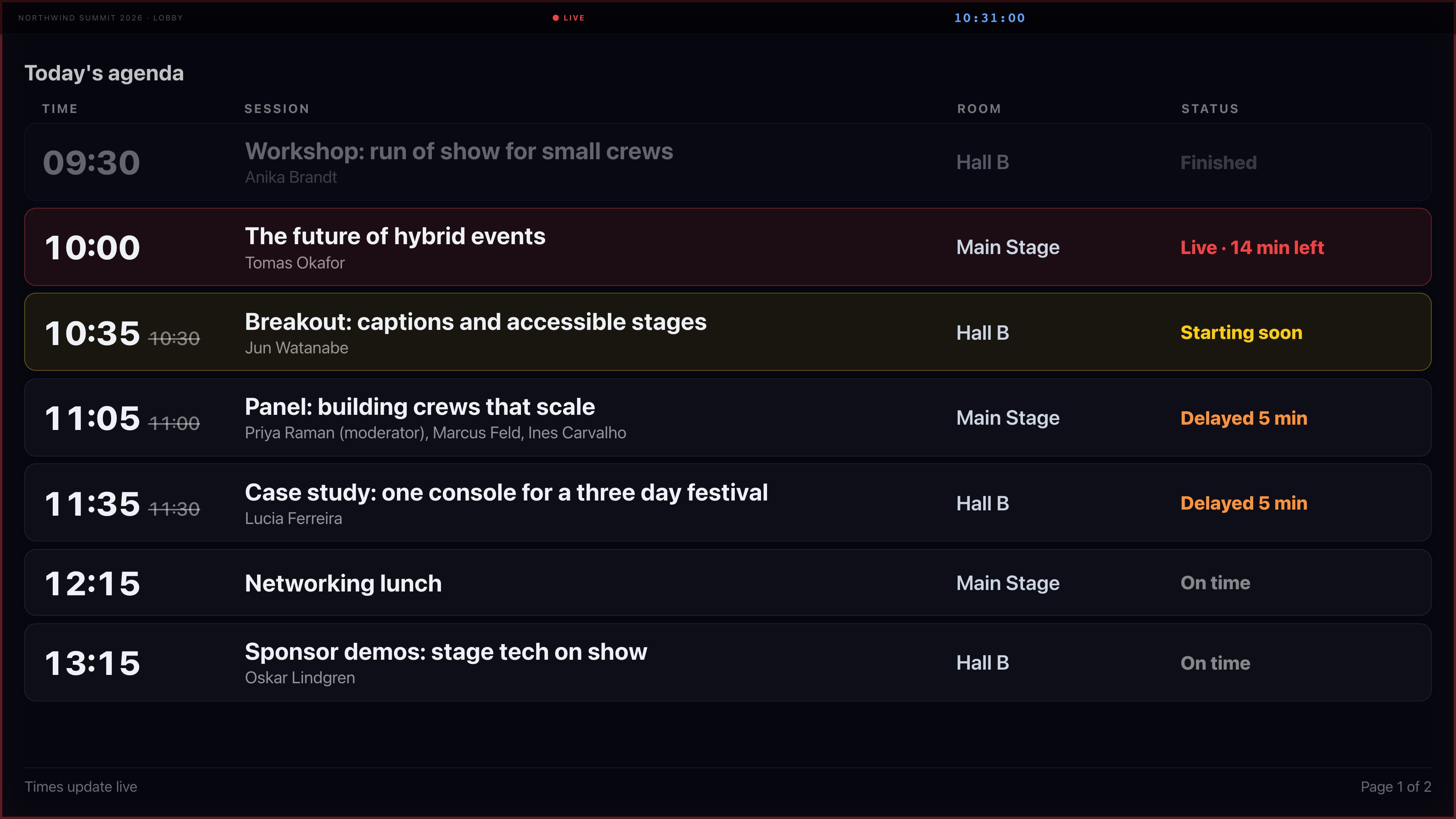
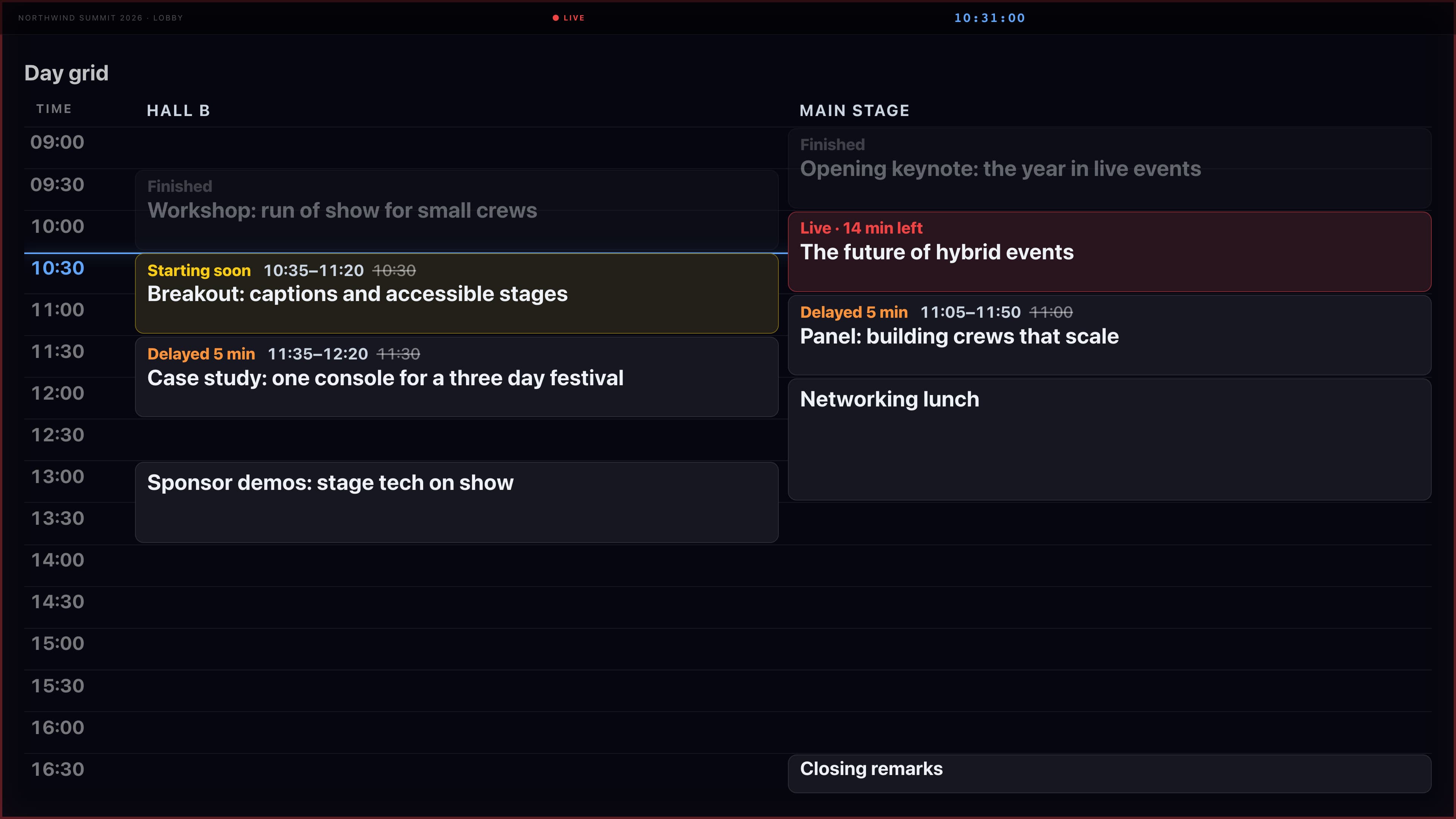
The agenda on every lobby screen
One departures style list for the whole venue, with the time, session, room and status of each one. The day grid shows the same programme by room. Both follow delays, so a session that runs late shows its new time with the old one struck through.
Behind the screens
Controlled from the console
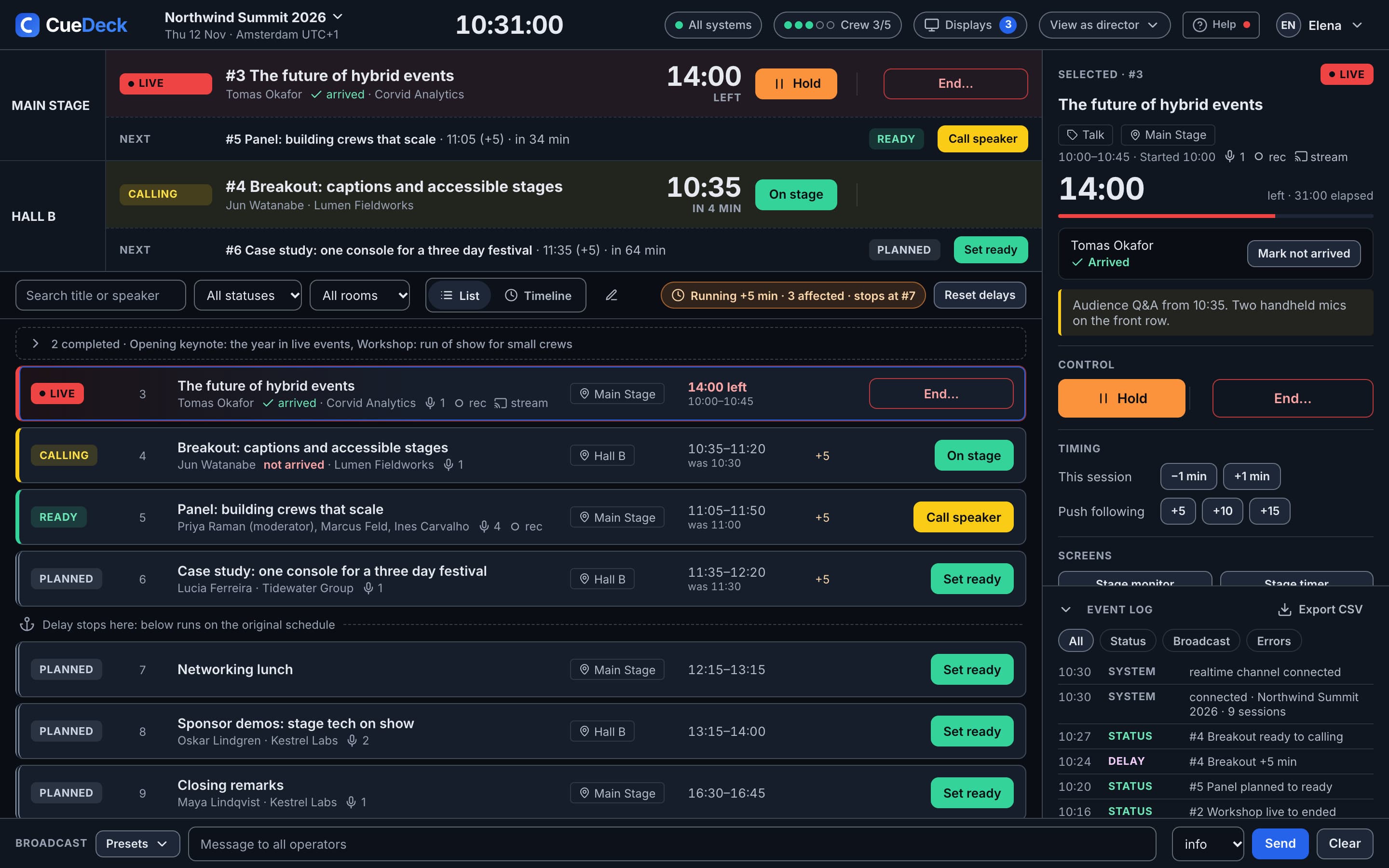
The stage timer and every signage screen read the same schedule your crew is running. When the director goes live, holds or adds time, the screens follow within a second.
Questions
Stage timer questions
Do I need special hardware for the stage timer?
No. Any screen with a web browser works, such as a TV, a tablet or a monitor on a laptop. Open app.cuedeck.io/d on it and pair it with a code. You can also install the display as a fullscreen app from the browser.
How do I connect a screen?
Open app.cuedeck.io/d on the screen and a 6-character pairing code appears. Type the code into the Signage panel in the console and click Pair. The code expires after 5 minutes if it is not used.
What happens when a speaker runs over time?
The countdown goes from green to amber to red as time runs low. Once the session passes its planned end, the timer flashes and shows the time over, for example +2:15, and the session shows as OVERRUN in the console.
What does HOLD do?
HOLD pauses a live session, for example during a technical issue. The stage timer freezes and shows HOLD until the director or stage manager resumes the session.
How many display modes are there?
Eleven: stage timer, schedule, agenda, timeline, programme, wayfinding, sponsors, break, Wi-Fi, recall and custom message. A display can show one mode or rotate through a sequence of them.
How many screens can I connect?
Pay-per-event includes 2 signage displays, Starter includes 5 and Pro has no limit. The stage timer is included in every plan.
Related
Keep reading
Put the clock where the speaker can see it
Included in every CueDeck plan. 3-day free trial, no credit card.
Start free trial